Your operations team lives in Google Sheets. Every lead, every order, every payment due date — it’s all in a spreadsheet somewhere.
And every time something in that sheet needs a WhatsApp message to go out, someone manually copies the number, opens WhatsApp, types the message, sends it. One row at a time. For 200 rows.
Google Sheets WhatsApp integration eliminates this entirely. A row gets updated in your sheet — message fires automatically to the right person. No copy-paste. No manual sending. No human error.
Here’s exactly how it works and how to set it up.
Why Google Sheets Is the Hidden Automation Goldmine for Indian Businesses
Seedha bolta hoon — Google Sheets is the most underestimated business tool in India. Every SME I’ve worked with in 15 years has a critical Google Sheet somewhere. Sometimes multiple.
Lead tracking sheet. Payment due dates sheet. Order management sheet. Student database sheet. Employee attendance sheet. Property inquiry tracker. Fee collection sheet.
These sheets contain the most important data in the business. And that data is sitting there, dormant — not triggering any action, not sending any communication, not driving any revenue.
Google Sheets WhatsApp integration is the bridge between that dormant data and real-world communication. When something changes in your sheet — a new row added, a status column updated, a date approaching — a WhatsApp message fires. Automatically. To the right person. With the right content.
I’ve seen a coaching institute in Pune eliminate their 3-person “fee reminder team” after implementing Google Sheets WhatsApp integration. Their fee collection sheet updated when payments were due. WhatsApp reminders fired automatically. Collection rate went from 58% on-time to 84% on-time. Three people freed to do actual teaching work. Same revenue. Less cost. Better outcome.
That’s what happens when your data stops being passive and starts triggering action.
What Google Sheets WhatsApp Integration Actually Is
Let me explain this simply before getting into the technical setup.
Google Sheets WhatsApp integration creates a connection between your Google Sheets and WhatsApp Business API so that:
- Adding a new row can trigger a WhatsApp message (new lead entered → welcome message sent)
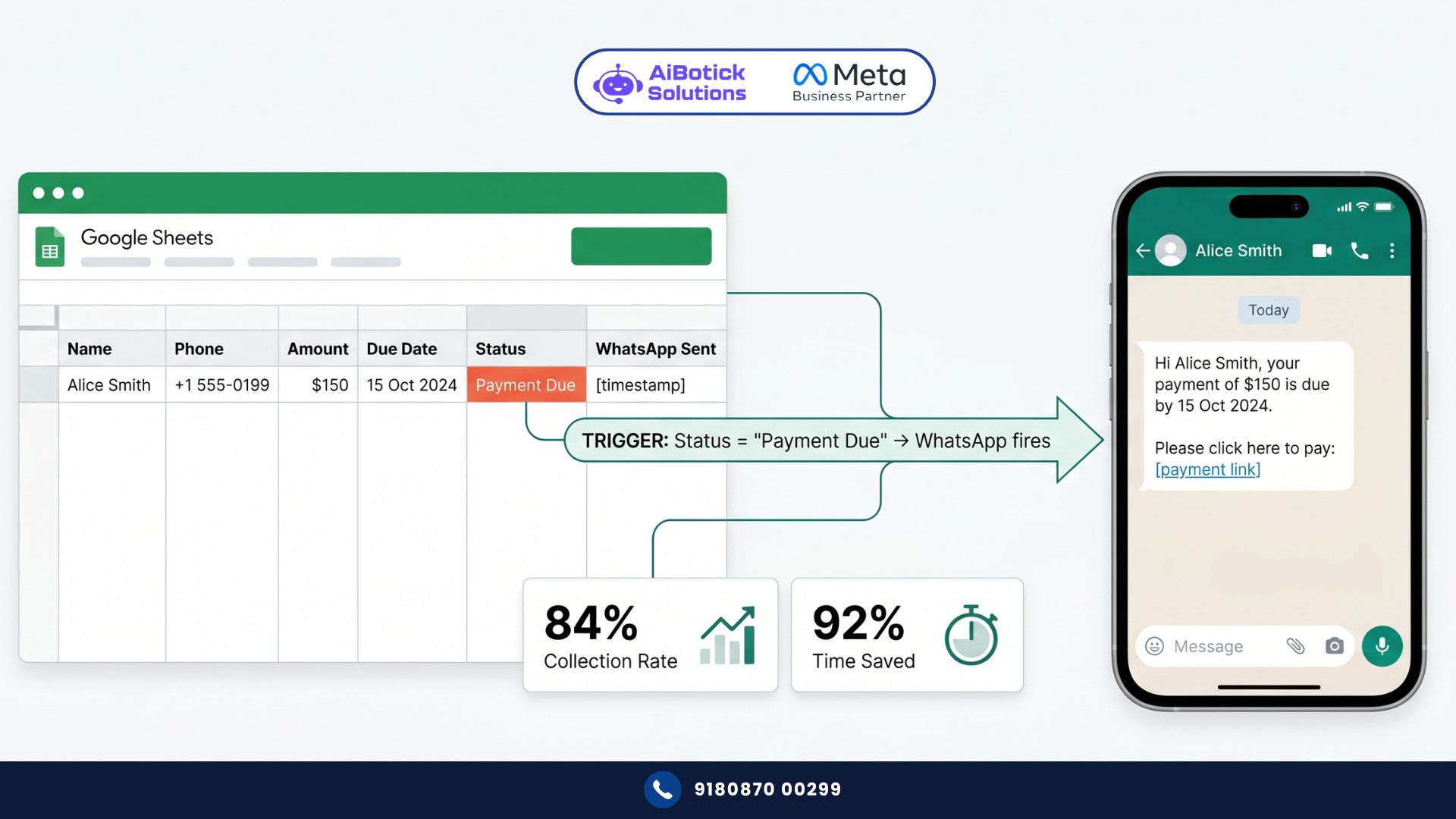
- Updating a cell can trigger a message (status changed to “Payment Due” → reminder sent)
- A date approaching can trigger a message (30 days before renewal date → alert sent)
- A checkbox ticked can trigger a message (order dispatched checkbox → shipping notification sent)
- A specific value entered can trigger a message (marks entered below 40% → parent alert sent)
The sheet stays exactly as your team uses it. No new tool to learn. No new process. Just: data changes in sheet → WhatsApp message fires.
It’s not magic. It’s a webhook connection between Google Sheets (via Google Apps Script or Zapier/Make.com or direct API) and WhatsApp Business API. But from your team’s perspective, it feels like magic.
What People Get Wrong About Google Sheets WhatsApp Integration
Most people who try Google Sheets WhatsApp integration approach it like a “blast sender.”
They think: I have 500 numbers in my sheet. I’ll connect Google Sheets to WhatsApp. Press a button. 500 messages go out.
Nope. That’s WhatsApp bulk messaging — and if done wrong, it gets your number banned.
Google Sheets WhatsApp integration done properly is event-triggered, not button-triggered.
No no, scratch that — let me explain with a real example.
Wrong approach: “I have 500 leads in my sheet. I want to send all of them a promotional message at once.”
This is a broadcast campaign. Should be set up in your WhatsApp platform directly — not triggered from a sheet. Sheets integration isn’t designed for mass simultaneous sends.
Right approach: “When I add a new lead to my sheet, that specific lead should automatically receive a WhatsApp message within 5 minutes.”
Or: “When I change the ‘Status’ column to ‘Payment Due’ for any row, that customer should receive a payment reminder on WhatsApp.”
Or: “7 days before the ‘Renewal Date’ column date for any row, send an automated renewal reminder.”
These are event-triggered, personalised, one-at-a-time messages — triggered by specific changes to specific rows. This is the proper use of Google Sheets WhatsApp integration. And this is what produces results without getting you banned.
Real Case Study: Delhi NBFC — 84% Loan EMI Collection From Google Sheets Automation
The Situation:
- Small NBFC in Delhi, 340 active loan accounts
- EMI due dates tracked in Google Sheets (one row per loan, columns: borrower name, phone, EMI amount, due date, payment status)
- EMI reminder process: finance team manually WhatsApps each borrower 3 days before due date
- Time spent on manual reminders: 6 hours/day during peak collection periods
- On-time EMI collection rate: 61%
The Problem: Manual reminder process was inconsistent. Some borrowers got reminders. Others were forgotten. Collection team’s time was consumed by copy-paste WhatsApp work instead of handling complex cases.
What They Built:
Google Sheets WhatsApp integration with 3 trigger rules:
Trigger 1 — 7 days before EMI due date: When today’s date = EMI due date minus 7 days → Send WhatsApp to borrower: “Hi [Name], your EMI of Rs.[Amount] for loan account [Number] is due on [Date] — that’s 7 days away. Please ensure sufficient balance. Questions? Reply here.”
Trigger 2 — 1 day before due date: “Reminder: Your EMI of Rs.[Amount] is due tomorrow ([Date]). Pay via UPI to [UPI ID] or bank transfer to [Account]. Reply ‘PAID’ once done.”
Trigger 3 — When payment status column changes to “RECEIVED”: “Payment received ✅ Rs.[Amount] for loan [Number]. Thank you! Next EMI due: [Date]. Statement available on request.”
Trigger 4 — 2 days after due date if payment status still “PENDING”: “Hi [Name], your EMI of Rs.[Amount] was due on [Date]. We notice it’s still pending. Late payment charges apply from Day 3. Pay today to avoid: [UPI link]. Need help? Reply here.”
The Results (90 days):
| Metric | Before | After | Change |
|---|---|---|---|
| On-time EMI collection rate | 61% | 84% | +38% |
| Finance team hours on reminders/day | 6 hours | 0.5 hours | -92% |
| Late payment cases/month | 136 | 54 | -60% |
| Late fee revenue (good metric here) | Rs.2.8L | Rs.1.1L | -61% |
| Borrower satisfaction score | 58% | 82% | +41% |
| Collection team capacity for complex cases | 30% | 85% | +183% |
That collection team capacity number. When reminder work is automated, the team focuses on the 16% of cases that genuinely need human intervention. Case resolution quality improves. Relationships improve. Business improves.
5 Powerful Use Cases for Google Sheets WhatsApp Integration
Use Case 1: Lead Response Automation
Setup: Sales team adds new leads to Google Sheet (name, phone, source, product interest).
Trigger: New row added to sheet.
WhatsApp sent: “Hi [Name], thanks for your interest in [Product]! I’m [Sales rep name] from [Company]. Quick question — are you looking at this for personal or business use? Reply 1 (personal) or 2 (business) and I’ll share the most relevant details.”
Impact: Lead responded to within 2 minutes of being entered. No manual assignment needed. Sales rep gets notification that conversation has started.
Use Case 2: Payment and Fee Due Date Reminders
Setup: Finance sheet with customer name, phone, amount, due date, payment status.
Triggers:
- 7 days before due date → reminder
- Day of due date → final reminder with payment link
- 2 days overdue (if status still unpaid) → late notice
Impact: Manual reminder calls/messages eliminated. Collection rates improve 20-30% consistently.
Use Case 3: Order and Delivery Status Updates
Setup: Order management sheet with customer phone, order details, dispatch date, delivery status column.
Trigger: When dispatch date column is filled in (order dispatched) → WhatsApp notification to customer with tracking details. When delivery status changes to “Delivered” → confirmation WhatsApp sent.
Impact: WISMO (Where Is My Order?) calls drop 80%. And for any business managing orders across multiple channels, this Google Sheets WhatsApp integration connects directly to the broader order communication system — our WhatsApp order tracking guide shows how to structure the full order update sequence from dispatch to delivery confirmation.
Use Case 4: Student and Parent Communication
Setup: Student database sheet with student name, parent phone, attendance %, test scores, fee status.
Triggers:
- Attendance below 75% → parent alert on WhatsApp
- Test score below passing threshold → WhatsApp notification
- Fee due date approaching → fee reminder to parent
- Fee payment received → confirmation on WhatsApp
Impact: Coaches and admin staff freed from individual communication. Parents feel informed. Issues caught early.
Use Case 5: Employee and HR Communication
Setup: HR sheet with employee name, phone, probation end date, appraisal date, document submission status.
Triggers:
- 14 days before probation end → WhatsApp to manager for review scheduling
- Document missing (checkbox empty) → WhatsApp reminder to employee
- Appraisal date approaching → WhatsApp to both employee and manager
- Salary processed (status column updated) → WhatsApp confirmation to employee
Impact: HR admin time cut significantly. No more “did salary get credited?” calls.
How to Set Up Google Sheets WhatsApp Integration: 3 Methods
Method 1: Google Apps Script (Free, Technical)
Google Apps Script is a JavaScript-based scripting tool built into Google Sheets. You write a script that:
- Reads data from specific columns
- Checks trigger conditions (date approaching, status changed, new row added)
- Calls WhatsApp Business API with the message
Who should use this: Businesses with someone technical on the team (developer, tech-savvy ops person).
Setup time: 2-4 hours for basic triggers, 1-2 days for complex multi-trigger setup.
Cost: Free (just WhatsApp API conversation charges).
Basic script logic:
function sendWhatsAppReminders() {
  const sheet = SpreadsheetApp.getActiveSheet();
  const data = sheet.getDataRange().getValues();
  const today = new Date();

  for (let i = 1; i < data.length; i++) {
    const dueDate = new Date(data[i][3]); // Column D = due date
    const phone = data[i][1]; // Column B = phone
    const amount = data[i][2]; // Column C = amount
    const status = data[i][4]; // Column E = payment status

    // Calculate days until due
    const daysUntil = Math.round((dueDate - today) / (1000 * 60 * 60 * 24));

    if (daysUntil === 7 && status !== 'PAID') {
      // Send 7-day reminder via WhatsApp API
      callWhatsAppAPI(phone, `Your payment of Rs.${amount} is due in 7 days...`);
    }
  }
}
Set this script to run automatically via a time-based trigger (every day at 9 AM). Sheet → script → WhatsApp. Automated.
Method 2: Zapier or Make.com (No-Code, Paid)
Zapier and Make.com are no-code automation platforms that connect Google Sheets to WhatsApp Business API without writing code.
Who should use this: Non-technical business owners who want setup without developer dependency.
Setup time: 1-2 hours.
Cost: Zapier Rs.1,500-6,000/month + WhatsApp API charges. Make.com slightly cheaper.
How it works:
- Create a “Zap” (Zapier’s automation)
- Trigger: “New row in Google Sheet” or “Updated row in Google Sheet”
- Filter: Only proceed if specific conditions are met
- Action: Send WhatsApp message via AiBotick API
- Map sheet columns to message variables ({{name}}, {{amount}}, {{date}})
Done. No code. Visual, drag-and-drop setup.
Method 3: Direct API Integration via AiBotick (Most Powerful)
AiBotick’s WhatsApp Business API includes webhook endpoints that accept data from external sources — including Google Sheets.
Who should use this: Businesses wanting the most control, best performance, and direct integration without third-party dependency.
Setup time: 2-4 hours (initial setup), then managed through AiBotick platform.
How it works:
- Get your AiBotick API credentials and webhook URL
- In Google Apps Script or Zapier, call AiBotick’s API endpoint with message payload
- AiBotick handles template selection, message sending, delivery tracking
- All conversations visible in AiBotick’s shared inbox
- Replies from customers visible and manageable by your team
This is the recommended approach because replies to automated messages can be handled by your team through the shared inbox — creating a complete conversation system, not just one-way message sending.
Step-by-Step: Building Your First Google Sheets WhatsApp Trigger
Step 1: Define your trigger clearly
Write it in plain English first: “When a new row is added to the ‘New Leads’ tab, send a WhatsApp message to the phone number in column B within 5 minutes.”
Be specific. Vague triggers create vague automations.
Step 2: Set up your Google Sheet structure
Your sheet needs:
- Phone number column (formatted correctly — 10 digits without country code, or with +91)
- Trigger column (date, status, checkbox — whatever fires the message)
- Variable columns (name, amount, product — data that goes into the message)
- Sent status column (to track which rows have had messages sent — prevents duplicates)
Add a “WhatsApp Sent” column (Yes/No or timestamp). Your script/automation should check this before sending — if it says “Yes”, skip the row. This prevents the same person getting 50 messages because your script runs daily.
Step 3: Write your message template
Use variables for personalisation: “Hi {{name}}, your {{product}} payment of Rs.{{amount}} is due on {{due_date}}. Pay via UPI: [link]. Reply if you need help.”
Variables pull from sheet columns. Every message personalised. Every message relevant.
Step 4: Choose your method (Script/Zapier/Direct API) and set it up
Based on your technical comfort and budget, choose your integration method and build the connection.
Step 5: Test with 2-3 rows before going live
Create 3 test rows with your own phone number. Verify:
- Message received on WhatsApp ✅
- Variables populated correctly ✅
- Timing is right (fires at the right moment) ✅
- “Sent” column updates to prevent duplicates ✅
Step 6: Set your trigger schedule
For date-based triggers (reminders 7 days before, 3 days before): schedule script to run daily at 9 AM.
For event-based triggers (new row added, status changed): use Google Apps Script’s onEdit trigger (fires when sheet is edited).
For real-time integration (new CRM lead → immediate WhatsApp): use webhook-based approach via Zapier or direct API.
What This Saves Businesses Using Google Sheets WhatsApp Integration
For a business with 500 active customers and monthly communication touchpoints:
Manual process:
- Monthly payment reminders: 500 customers × 3 reminders × 5 minutes = 125 hours
- Order dispatch notifications: 300 orders × 3 minutes = 15 hours
- New lead responses: 200 leads × 5 minutes = 16.7 hours
- Status update messages: 100 status changes × 3 minutes = 5 hours
Total: 161 hours per month of manual WhatsApp communication
At Rs.400/hour staff cost: Rs.64,400/month in pure manual labor
With Google Sheets WhatsApp integration: all of this automated, 0 hours of manual communication work.
Platform cost: Rs.3,000-8,000/month.
Monthly saving: Rs.56,400-61,400. Annual saving: Rs.6.8-7.4L.
And that’s just the cost saving — not the revenue impact of faster lead response (3x better conversion), higher payment collection rates (23% improvement average), and better customer experience (zero missed communications).
Compliance and Best Practices for Google Sheets WhatsApp Integration
Always use WhatsApp Business API — not personal WhatsApp
Personal WhatsApp cannot be connected to Google Sheets or any automation. And unofficial “bulk sender” tools connected to sheets will get your number banned. Official API only.
Only message people who have opted in
Your sheet data should contain people who have an existing relationship with your business — customers, leads who gave their number, students, employees. Don’t use sheet integration to message scraped or purchased numbers.
Respect opt-out requests
Add an “OPT OUT” column to your sheet. When someone replies STOP, mark them as opted out. Your integration must check this column before sending any message.
Template messages only for outbound
WhatsApp Business API requires pre-approved templates for outbound messages. Your integration will use these approved templates with dynamic variables filled from sheet data. Don’t try to send free-form messages to people who haven’t initiated conversation — it won’t work through the API.
Track sent status
Always update your sheet when a message is sent (timestamp or Yes in “Sent” column). Without this, your daily trigger will resend messages to the same people repeatedly. That’s the fastest way to get your number flagged. And for businesses building more sophisticated automation where the sheet integration connects to broader customer journeys, our WhatsApp drip campaigns guide shows how sheet-triggered messages can be the first touchpoint in a multi-step sequence — connecting your static data to dynamic, adaptive follow-up flows.
Common Mistakes With Google Sheets WhatsApp Integration
Mistake 1: No duplicate prevention Script runs daily. Sends reminder to everyone whose due date is in 7 days. Day 2: same people are now 6 days away — different trigger condition, no message. Good. But if your trigger is “due date is in 7 days OR LESS” — they get messages every day until due date. Build exact-date conditions, not range conditions. Or use the “Sent” column to prevent duplicates.
Mistake 2: Phone numbers formatted incorrectly WhatsApp API needs numbers in specific format (usually with country code: 919876543210 for India). If your sheet has numbers as “98765 43210” with space, or “09876543210” with leading 0 — they’ll fail. Clean and standardise phone format before integration.
Mistake 3: Message variables pulling empty cells Customer name column is blank for some rows. Message goes out: “Hi , your payment…” Embarrassing. Add validation: only send if name column is not empty. Or use a fallback: {{name | “Valued Customer”}}.
Mistake 4: No monitoring after launch Sheet integration runs silently in the background. If WhatsApp API has an issue, messages fail — and nobody notices for days. Set up error alerting. Google Apps Script can email you when it encounters errors. Check delivery rates weekly.
Mistake 5: Connecting to personal WhatsApp instead of API I keep saying this but it’s the most common mistake. Personal WhatsApp cannot be automated. Ever. If someone’s selling you a tool that “connects Google Sheets to your personal WhatsApp” — run. It’ll get you banned within weeks.
Why Google Sheets WhatsApp Integration Is the Most Practical Automation for Indian SMEs
Honestly? Most Indian businesses don’t need complex CRM integrations or fancy automation platforms to get started with WhatsApp automation.
They need their existing tools — the Google Sheets they already use — to start triggering communication automatically.
Google Sheets WhatsApp integration is the lowest barrier, highest impact automation available to Indian SMEs. You don’t change your process. You don’t adopt new software. You connect the tool you already use to the communication channel your customers are already on.
The Delhi NBFC went from 61% to 84% EMI collection. Without a new CRM. Without new software. Without new staff. Their existing Excel habit — now in Google Sheets — started triggering WhatsApp reminders automatically.
That’s the power of connecting what you already have. Not replacing it — extending it. 💯
Ab toh yeh toh clear hai — agar Google Sheets use karte ho aur WhatsApp pe manually message karte ho, then Google Sheets WhatsApp integration is literally built for you. Set it up once. Let it run forever.
Want to connect your Google Sheets to WhatsApp and automate your customer communication?
— Mohit Shah | 15+ years in IT industry | 4+ years in WhatsApp automation | Worked with various MNC brands | Now helping businesses figure out what actually works
Q1: Does Google Sheets WhatsApp integration work in real-time, or is there always a delay?
A1: It depends on your chosen method. Google Apps Script with an onEdit trigger fires within 1-3 minutes of a sheet edit — nearly real-time. Time-based triggers (script runs every hour or daily) introduce the scheduled delay — if you run daily at 9 AM, triggers fire within 24 hours of the condition being met. Zapier’s standard plan checks Google Sheets every 15 minutes. Zapier’s paid plan can check every 1-2 minutes. For truly real-time (under 60 seconds), direct API integration via AiBotick’s webhook — where the sheet sends data immediately when updated — achieves this. For most business use cases (payment reminders, status updates), 15-minute to daily delays are perfectly acceptable. For lead response (where speed matters most), real-time webhook integration is worth the additional setup.
Q2: What happens if a customer replies to an automated Google Sheets WhatsApp message?
A2: When you use WhatsApp Business API (via AiBotick), all replies from customers come into your shared team inbox — visible to all agents, assignable, trackable. The automated message starts the conversation; human agents handle the replies. You can also configure keyword-based auto-replies for common responses (customer replies “PAID” → automated confirmation sent, sheet status updated to “RECEIVED”). For complex queries or complaints, replies route to the right team member. This is one key advantage of proper API integration over unofficial bulk sender tools — the conversation doesn’t end with the automated message, it continues as a real two-way interaction your team can manage.
Q3: Can Google Sheets WhatsApp integration handle personalisation for large databases with thousands of contacts?
A3: Yes — at any scale. The personalisation happens through variable mapping: your script or Zapier flow reads the relevant columns (name, amount, product, date) for each row and inserts them into the message template. Whether you have 100 rows or 10,000 rows, each message is personalised to that specific row’s data. The constraint is send rate — WhatsApp Business API has per-minute sending limits that vary by account quality and tier. For large volumes (thousands of messages in a short window), messages queue and send over time rather than all simultaneously. For event-triggered (one message per new row or status change), scale isn’t an issue — each trigger fires one message at a time as events occur naturally.